
How to set up and sync your Apple devices for a smooth experience
Setting up and syncing your Apple devices correctly is essential to take advantage of all the benefits of its ecosystem. From the iPhone to the iPad and th…

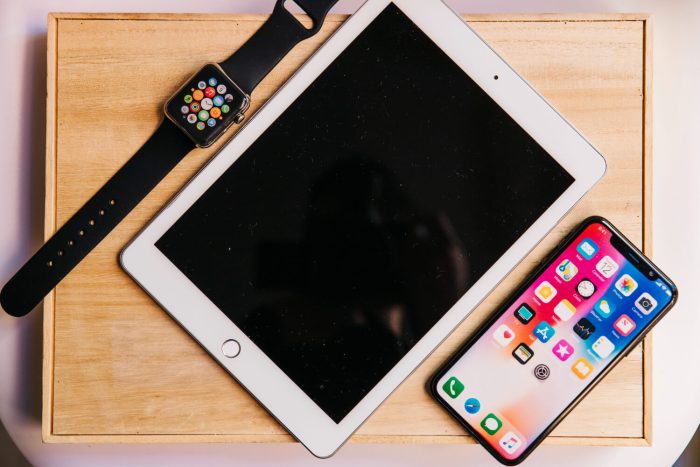
Setting up and syncing your Apple devices correctly is essential to take advantage of all the benefits of its ecosystem. From the iPhone to the iPad and the Mac, Apple allows you to integrate all devices easily to share files, photos, messages and much more.
Set up iCloud on all your devices
iCloud is the main tool for syncing and backing up information in the Apple ecosystem. Activate it on each device so that all your data, photos and files sync automatically.
- On iPhone or iPad: go to Settings > [your name] > iCloud and activate the sync options according to your preferences.
- On Mac: open System Preferences > iCloud and sign in with your Apple ID. Make sure to select the services you want to sync.
With iCloud, you can access your files on all your devices, and any change you make will be reflected automatically on all of them.
Activate Handoff for continuity between devices
Handoff is a feature that allows you to start an activity on one device and continue it on another without interruptions. To activate it:
- On iPhone or iPad: go to Settings > General > Handoff and activate it.
- On Mac: open System Preferences > General and select "Allow Handoff between this Mac and your iCloud devices".
With Handoff, you can start writing an email on the iPhone and continue on the Mac, or open a web page on the iPad and keep reading it on the iPhone without wasting time.
Sync photos and documents with iCloud Drive
To have your photos and files available on all your devices, iCloud Drive is a practical solution.
- Photos: activate the iCloud Photo Library to store your photos and videos in the cloud and access them from any Apple device. You can do it from Settings > Photos on iPhone or iPad and from System Preferences > Photos on Mac.
- iCloud Drive: activate iCloud Drive in Settings > iCloud for iPhone or iPad, and in System Preferences > iCloud on Mac. This will allow you to store files and sync them across all your Apple devices.
Use AirDrop to share files instantly
AirDrop makes it easy to send files, photos and documents between Apple devices without needing internet. To use it:
- Activate AirDrop on your iPhone or iPad from the Control Center and choose who can send you files: "Contacts Only" or "Everyone".
- On Mac, open Finder and select AirDrop in the sidebar. Here you can adjust who can send you files.
AirDrop is ideal for transferring files quickly between nearby devices, and is compatible with iPhone, iPad and Mac.
Sync messages and calls on all your devices
Apple allows you to sync messages and calls between devices to keep you always connected.
- Messages: activate Messages in iCloud to receive all your messages on any device. On iPhone, go to Settings > [your name] > iCloud > Messages and activate it.
- Calls: activate calls on other devices in Settings > Phone > Calls on Other Devices. Select the devices on which you want to receive calls.
With these options activated, you will be able to receive and answer messages and calls from any device connected to your iCloud account.

Syncing your Apple devices can improve your user experience and make your entire ecosystem work in an integrated way. From iCloud to Handoff and AirDrop, these tools make continuity between your devices easier.
If you have problems setting up or syncing your devices, at iRepairs we offer specialized support so you can make the most of your Apple technology.


![How to install an Android emulator for Mac [Guide]](https://www.irepairs.es/wp-content/uploads/2023/03/emulador-android-para-mac.jpg)