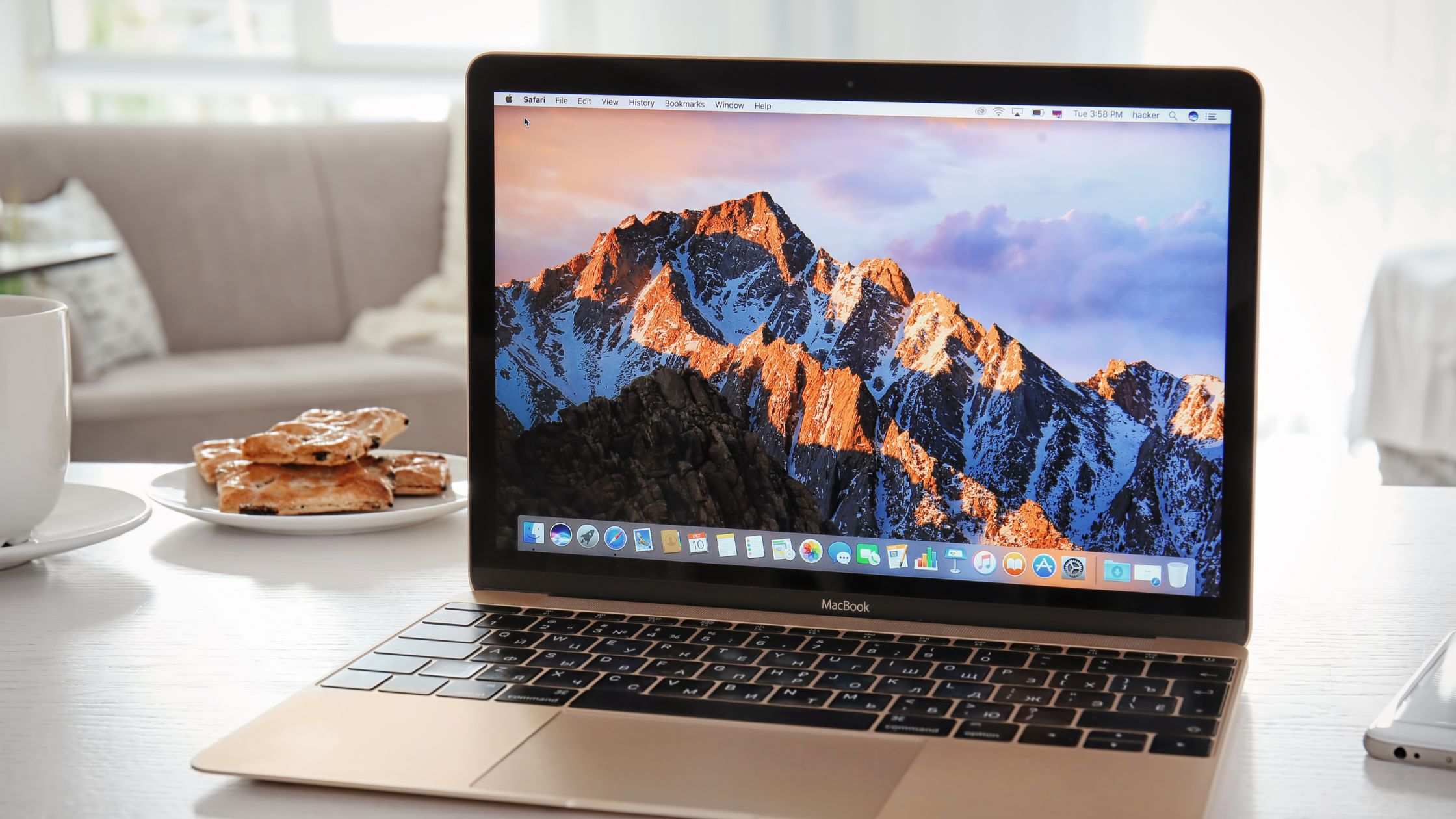
How to use WhatsApp on my MacBook?
Although the process is simple, it requires following certain precise steps to ensure a successful and secure installation. We tell you everything...

WhatsApp on MacBook: real compatibility and advantages
The integration of WhatsApp with macOS has evolved notably in recent years. Since the arrival of the native app optimized for Apple Silicon processors (M1, M2 and M3), the experience is smoother, faster and more stable. For those who work from a MacBook, this compatibility means a more comfortable way to manage conversations without depending on the phone.
The system allows you to keep conversations active across several devices, sync files easily and take advantage of the MacBook's power for more intensive messaging tasks. In 2025, WhatsApp Desktop works even when the phone is turned off or offline, something that was not possible a few years ago.
What benefits do MacBook users get when using WhatsApp?
- Greater productivity: faster access to chats, the ability to type with a physical keyboard and the use of shortcuts.
- Immediate access: you can read and reply without looking at the phone, reducing distractions.
- Convenient file management: drag and drop photos, videos and documents directly into the chat.
- Synchronization independent of the phone: in its latest version, WhatsApp can work even if the phone is not connected.
This integration turns WhatsApp into a key tool for both personal and professional use, thanks to a more orderly and efficient workflow.
Step by step: how to install WhatsApp on your MacBook
Installing WhatsApp on macOS is a simple process, but it is best to do it from the official sources to avoid security or performance problems.
1. Download WhatsApp Desktop
Go to the official WhatsApp website and enter the downloads section. Select the version for macOS (Intel or Apple Silicon, depending on your model). A .dmg file will be downloaded.
Make sure you have the system updated (macOS Ventura, Sonoma or later) to guarantee full compatibility with the application.
2. Install and link your account with the phone
Open the .dmg file and drag the WhatsApp icon to the Applications folder. When you open the application, a QR code will appear.
To link your account:
- On your iPhone or Android open WhatsApp.
- Go to Settings > Linked Devices.
- Select Link a Device and scan the code.
In seconds, you will be able to send and receive messages directly from your MacBook.
WhatsApp Web: the quick alternative without installing anything
If you prefer not to install applications or only need to use WhatsApp occasionally, WhatsApp Web is an immediate and effective option.
Quick start on your MacBook
You just have to go to the official WhatsApp Web site in your browser and scan the QR from your phone. Synchronization happens instantly, showing your chats, files and notifications.
It is ideal for those who work with several tabs open and want to keep WhatsApp accessible without loading the system.
A boost to your productivity
Its interface is optimized for large screens, making it easier to review documents, search within chats and manage history. In addition, browser notifications keep you up to date even if the tab is in the background.
Tips and tricks to get the most out of WhatsApp on macOS
WhatsApp offers little-known features that improve productivity and organization within the MacBook.
Master WhatsApp Web like an advanced user
- Useful keyboard shortcuts: start a new chat (⌘ + N), search (⌘ + F), mark messages as read and more.
- Configurable notifications: adjust sound or visual alerts according to your work activity.
- Starred messages: save important information to consult it quickly.
Optimize your work environment
- Multiple windows: place WhatsApp on a separate or side desktop to keep it accessible.
- Archive inactive chats: avoid distractions and keep your conversation list cleaner.
With these adjustments, WhatsApp integrates much better with your routine on macOS, making work and communication easier.
Troubleshooting common problems in WhatsApp for MacBook
Although the app is stable, occasional glitches may arise. These are the most frequent and how to solve them.
Connectivity problems
If WhatsApp does not connect, make sure that both the MacBook and the phone have Internet. Turn off your VPN if it is active, since it can block the connection. Restarting the router or WhatsApp itself also helps.
You do not receive notifications
Go to System Preferences > Notifications and check that WhatsApp has permissions. If they still do not appear, restart the application or log out and link your device again.
Message desynchronization
If some messages do not appear on the MacBook, it is possible that the linked session has expired. Open WhatsApp on your phone and check Linked Devices. If necessary, delete the session and scan the QR again. This usually resolves the delays and updates the synchronization instantly.
Thanks to the updated compatibility of WhatsApp with macOS, managing your communication from your MacBook is more comfortable, stable and productive than ever. If you experience persistent failures or your computer has performance problems, the technical team at iRepairs can help you optimize your MacBook or repair any related fault.


![How to install an Android emulator for Mac [Guide]](https://www.irepairs.es/wp-content/uploads/2023/03/emulador-android-para-mac.jpg)