What to do if our Mac freezes while installing a macOS update
Installing a new version of macOS is usually a simple process: the system notifies us from the Notification Center when updates are available. Sometimes it…
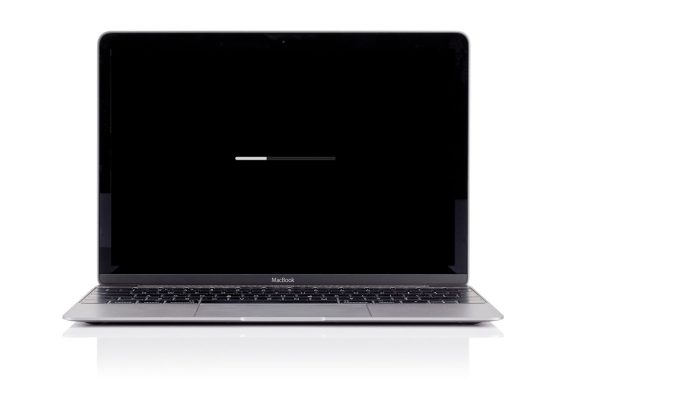
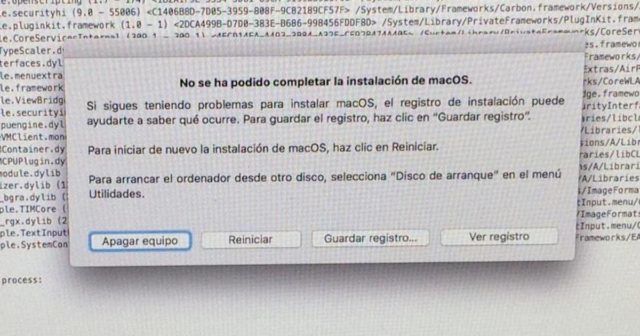
Installing a new version of macOS is usually a simple process: the system notifies us from the Notification Center when updates are available. Sometimes it is even already downloaded and just needs our authorization to install. However, it doesn't always go well: some updates get blocked, take too long or show the message "macOS could not be installed on your computer". Here we explain step by step what to do if your Mac freezes or cannot complete the system installation.
Before updating: basic checks
Before installing a new version of macOS, perform some checks that can save you problems:
- Make a backup with Time Machine or an external drive.
- Make sure you have at least 20 GB free (recent versions such as macOS Sequoia or Sonoma require more space than before).
- Connect your Mac to power and avoid installing during electrical storms or with a low battery.
- Run Disk Utility (in Applications > Utilities) to repair possible errors before updating.
The macOS update can't be downloaded
If the update doesn't even download, try the following:
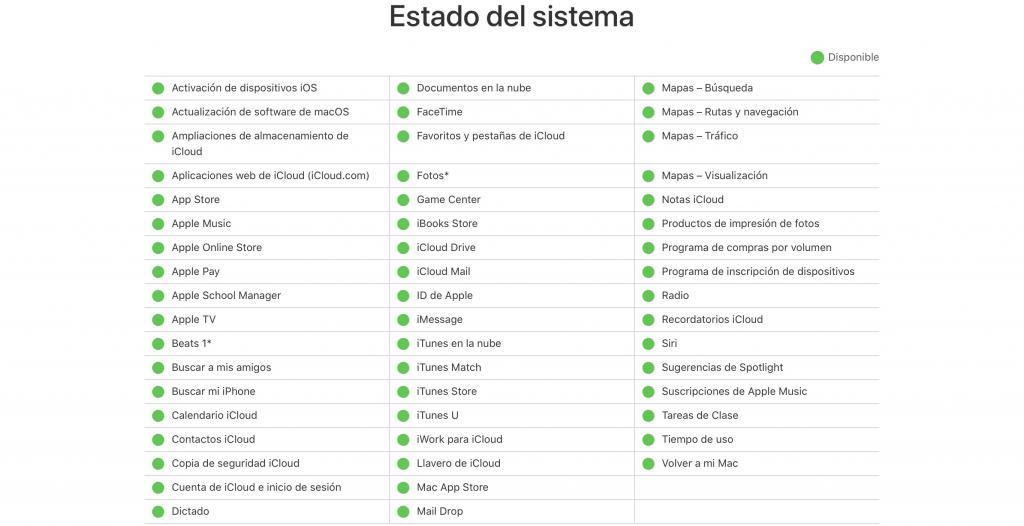
- Check the status of Apple's servers: when a new version is released (for example, macOS Sequoia 15 in 2025), millions of users try to download it at the same time. Check if there are incidents on the Apple System Status page.
- Connect via Ethernet cable: avoid Wi-Fi if the connection is unstable or slow.
- Cancel and restart the download: open the App Store, locate the download in progress, press Option (Alt) and cancel it. Then start it again.
- Download the installer from Apple's website: if the App Store fails, access the support page and download the macOS version directly from here.
How to know if the update has gotten stuck?
If your Mac shows the Apple logo with a progress bar that doesn't advance, or a white or black screen for a long time, the installation is probably blocked. Don't turn off the equipment immediately: interrupting an installation can cause data loss.
Before assuming it's frozen, wait a reasonable amount of time. Some updates, especially the larger ones, can take more than an hour depending on the model and the free disk space. You can press Command + L to open the installation log and see if files are still being copied or if the process has really stopped.
What to do if your Mac freezes during installation
If you confirm that the installation does not advance after a long period (more than 2 hours without progress), follow these steps:
- Restart the Mac: hold down the power button until it turns off, wait a few seconds and turn it on again.
- Open the App Store and check the updates section: if you were installing from there, it may resume automatically.
- Check the log: if the progress bar appears again, press Command + L to check activity.
- Use a "combo" updater: download the Combo Update of the corresponding version from Apple support. This option reinstalls all the system files and usually fixes partial installation errors.
- Boot in safe mode: turn off your Mac, turn it on and hold down the Shift key. Once inside, open the App Store and try the update again. Then restart normally.
- Free up space: delete files or empty the trash if the update failed due to lack of storage.
- Reset the NVRAM: turn off the Mac and, when turning it on, hold down Command + Option + P + R for about 20 seconds.
- Use recovery mode: restart the Mac and hold Command + R. From there you can reinstall macOS, restore from a Time Machine backup or use Disk Utility to repair the system.
- Install from an external drive: create a USB installer with the macOS version and use it if the internal installer keeps failing.
- Run Disk Utility after the update: when finished, repair permissions and disk structure to prevent future errors.
"macOS could not be installed on your computer" — how to solve it
This message usually appears when something prevents the installation from completing, whether due to incompatibility, lack of space or damaged files.
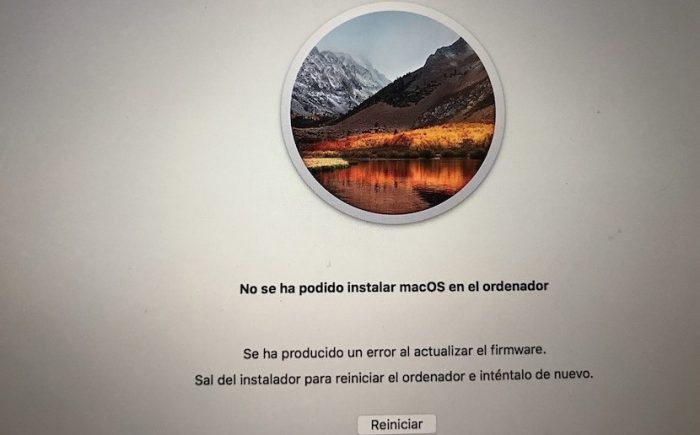
If it happens to you, try the following steps:
- Boot in safe mode (hold down the Shift key when turning on). This prevents problematic extensions from loading and allows access to the system.
- Open the App Store and download the macOS installer again (for example, Sonoma or Sequoia).
- When it has downloaded completely, start the installation again from the new file.
If the error persists, your Mac may not be compatible with the most recent version of macOS. Equipment prior to 2017 usually loses official support starting with macOS Ventura. In that case, you can opt to reinstall the most recent stable version for your model or consult upgrade options at an authorized technical service.
If you need professional help, you can contact us by calling 933 900 524, write to us from the contact section or visit our workshop in Barcelona. We will review your equipment and advise you on the best way to restore or update your system without losing data.
With these solutions, most macOS update problems —from blocked installations to compatibility errors— can be solved without resorting to a complete reinstallation. Keep your Mac updated, but always with a backup ready before taking the leap.