Time machine Apple: what it is and how to recover it
If you are a Mac OS X user, you have surely seen in the system preferences an option that, to say the least, catches your attention at first glance. We are…
If you are a Mac OS X user, you have surely seen in the system preferences an option that, to say the least, catches your attention at first glance. We are referring to Time Machine Apple, a resource that can be very useful. On this occasion we want to talk about all the details surrounding this tool, which some operating systems are trying to imitate.
What is Time Machine and what is it for?
Time Machine is a program developed by Apple, which is included in all Mac computers since the Leopard version of the operating system was launched. Its function is to create a backup of the computer and be able to restore it in case there is some problem that requires it. The operation of this program is quite simple. In fact it relies on fairly well-known technologies. So in addition to being stable it is very easy to use.
How it works
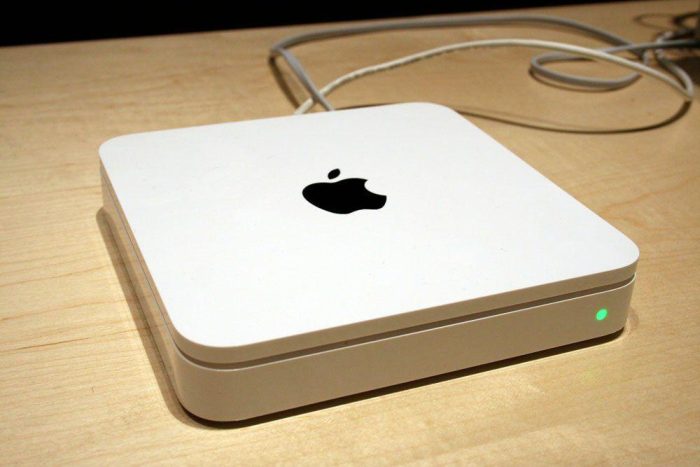
To run Time Machine you need to have an external storage drive. It can be a hard drive connected through a port or make use of the cloud and configure a Time Capsule, which is nothing more than a virtual drive connected remotely through the Internet.
If we insert an external hard drive, the system will ask us if we want to make a backup on it. It can be encrypted for greater security or this option can be unchecked.
The program takes care of making an exact copy of the entire system, both in structure and in files. Once this is finished, it will stay in the background checking that the files in the copy are the most recent. If not, it will proceed to make a copy and save it on the virtual drive.
As long as there is free space or we do not tell it otherwise, Time Machine Apple will keep saving the records of each copy, to access them if necessary. If it is full, the oldest copies will be deleted, but always warning us that it is going to proceed.
One of the highlights of this software is that it makes backups automatically. You just have to check the option in the box that appears in the window, select the destination disk and let it do its job. As simple as that. You can also activate a shortcut in the menu bar.
Recover specific files
In case you have lost an item, for example by having deleted an image or an email message, Time Machine can be run to recover it. Open the window in which the file should be, click on the Time Machine menu to enter the program and browse through the different windows that appear in the form of a folder, going back until you find what you have lost. When you locate it you just have to click on the Restore command or on the item with the Control key pressed.
Restore the system
If you notice that something is wrong and you think it is due to something that was done incorrectly, you can reverse the process by recovering a copy of the system from an earlier date. Look for the option Restore from Time Machine Backup and choose the date you want to recover.
Problems that may occur with Time Machine
Although Apple works to make everything function as well as possible, there are a series of faults that can arise when using this program. These are the most common:
- Error while copying files: This message appears when a file from the source disk cannot be copied to the destination one. As a general rule it is due to not having the necessary permissions to do so, so modifying these permissions can be a solution.
- Copy aborted due to indexing failure: This error cannot always be solved this way, so you have to put it into practice and cross your fingers. Run Disk Utility and do a scan to repair it. Try again and wait for everything to go well.
- Files that take up too much space: Time Machine relies on the creation or modification date of a file to make the copy. For this reason, a file of a few Mb may transform into Gigs of information. This is something that has been improved in new versions of certain programs such as the mail manager or the photo one, which rely on smart libraries that Time Machine can handle. Others are not updated and therefore still have this problem. For example if you have added a photo to Photos, Time Machine will only copy this one and not the entire collection again. Although for loose files or those we have created ourselves it is not possible to do so.
We hope to have explained well what this Apple tool consists of, which can get you out of a jam on more than one occasion. In case you require the repair of your time machine drive, contact us to help you recover files and/or repair the time machine so that you can keep using it with all guarantees.