Preparing Apple devices for the new school year: A guide for students and professionals
With the new school year just around the corner, your Mac, iPad or iPhone will be part of your daily routine for studying, working and keeping your tasks i…
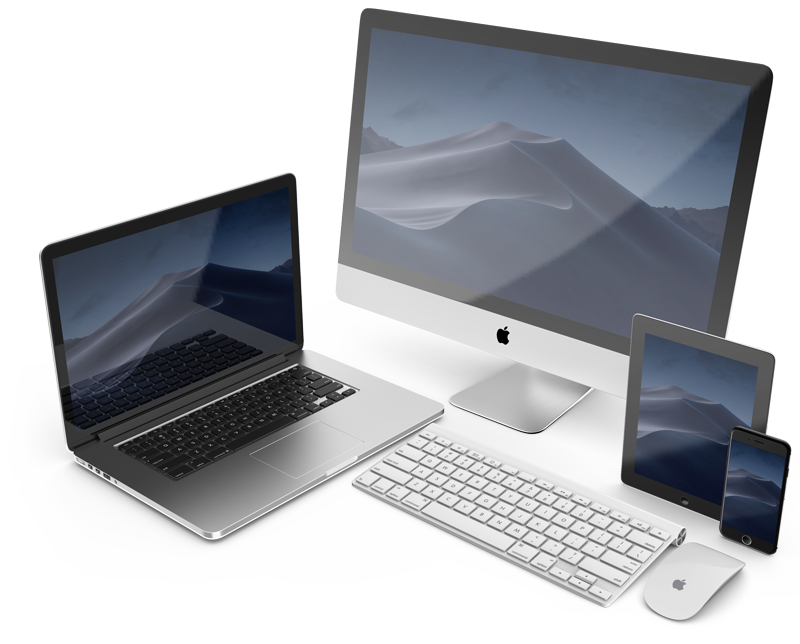
With the new school year just around the corner, your Mac, iPad or iPhone will be part of your daily routine for studying, working and keeping your tasks in order.
Whether it is to submit a project, coordinate meetings or edit content, the condition of your device directly influences your productivity.
How to define the priorities of your Apple device
The use each person makes of their device is different. An engineering student may need more power for calculations and modeling, while a self-employed professional may place more value on battery life and synchronization between devices.
Having clear priorities helps you decide what to check first: speed, battery, available space or security.

How to clean and organize your Mac, iPhone or iPad
Delete files and applications you don't use
Over time, the device accumulates unnecessary files, applications and downloads. This takes up space and can slow down the system. On Mac, use the storage management option to identify and delete what is not useful. On iPhone or iPad, go to Settings > General > Storage and follow the recommendations.
Control the applications that open at startup
Many apps start by themselves and consume resources in the background. Disable the ones you don't need so that startup is faster and the device stays stable throughout the day.
When to update your Apple device's operating system
Updating the operating system brings security improvements and fixes errors, but beforehand it is advisable to check that the applications you use regularly will work correctly with the new version. Making a prior backup prevents data loss.
How to improve the battery and battery life of your device
If the battery runs out sooner than expected or the device shuts down suddenly, it may be degraded, so a battery replacement would be a good option. Check its status in “Battery Health” (iPhone and iPad) or in the system information section (Mac). Signs that it should be replaced:
- The percentage drops irregularly.
- The device shuts down when it still shows charge.
- The maximum charge does not exceed 80–85%.
Measuring the real capacity of the battery lets you know whether it needs to be replaced. If so, the ideal is to use original or quality compatible parts, always with warranty. To prolong its duration, reduce the brightness, close applications you are not using and disconnect Bluetooth or Wi-Fi when they are not necessary.
How to sync your Mac, iPhone and iPad with iCloud
Configuring iCloud correctly from the start prevents wasting time looking for files. Create an orderly folder structure (by client, subject or project) and name documents with date and version so they are easy to find.
If you work with large photos or videos, combine iCloud for what you use daily with an external drive to store heavier material. This way you will keep free space and avoid paying for storage you don't use.
How to protect the security and data of your Apple device
Activate Face ID, Touch ID or a secure password. Set up the “Find My device” option to locate it if it gets lost. And always keep an updated backup: Time Machine on Mac and iCloud on iPhone or iPad are reliable options for having a backup.
Useful accessories for Mac, iPhone and iPad
Some accessories can improve daily use and protect your investment:
- Quality USB-C Hub to expand ports.
- Video adapter for presentations without interruptions.
- Protective case to avoid damage from bumps or scratches.
Trying out accessories before buying them helps avoid problems such as unstable connections or parts that wear out quickly.
Repair or replace your Apple device?
It is not always necessary to buy a new computer. Improving components such as the disk (switching to SSD), expanding memory or changing the battery can extend the useful life of the device for several years.
There are specialized services that repair models Apple no longer covers, offering the computer a second chance.

Real examples of repairs
Design student's MacBook: it took several minutes to open editing applications. An SSD was installed and the RAM memory was expanded. Result: a notable increase in speed and stability.
Professional with desynchronized iPhone and iPad: iCloud was reorganized, the accounts were unified and automatic backups were activated. Now the files and notes stay updated on all their devices.
Prepare your Apple device for the new school year
Preparing your Apple device before the start of classes or work prevents interruptions, protects information and allows you to work more fluidly. You can follow these steps on your own or go to a specialized technical service for a complete review with free diagnosis and warranty.